A Complete ActiveX Web Control Tutorial
Introduction
ActiveX is a Microsoft technology developed in the mid 90’s, that allows for the creation of applet-like applications that can be downloaded and run within Microsoft's Web browser. This article is intended for Visual C++ developers who are trying to learn how to develop their first ActiveX control for a web application but finding it difficult. While trying to learn this technology myself, I found much of the information available on ActiveX was either no longer available, out of date, or missing critical information, making it extremely difficult for me to create an ActiveX control necessary for my development project. This article is intended to help you get up to speed quickly with developing an ActiveX control. It will show you the basic concepts you need to know about ActiveX, such as methods, properties, and events, and how to communicate between an ActiveX control and a web page. You will learn how to implement the control for use with default security settings in Internet Explorer on Windows XP, without getting unsigned or unsafe control warning messages.
For this tutorial, we will create an ActiveX control that displays a progress bar animated GIF when the control is loaded as a way to indicate to users that the control is loading and processing information. The control will contain functionality to demonstrate how to pass information between the control and the web page. You will be guided step by step on creating the control using Microsoft Visual Studio 2005.
Creating an ActiveX Control
To create an ActiveX control, use Microsoft Visual Studio 2005 to perform the following steps:
- From File menu, select New, then Project.
- In the New Project dialog, as shown in Figure 1, under Project types, select Visual C++, MFC. Under Templates, select MFC ActiveX Control.
- Name the project MyActiveX; for Location, enter the working folder for the project's source code, and then click the OK button.
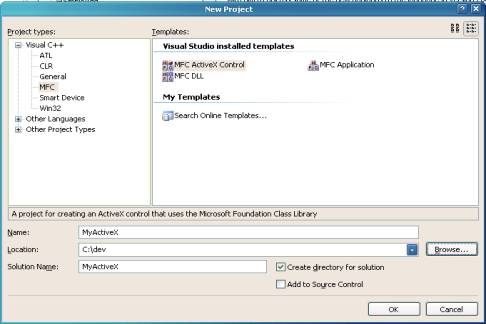
Figure 1. New Project Dialog
- In the MFC ActiveX Control Wizard dialog, as shown in Figure 2, select Control Settings.
- Under Create control based on, select STATIC. We are using a static control, as we are just displaying the output from the control and not accepting input.
- Under Additional features, make sure Activates when visible and Flicker-free activation are checked and Has an About box dialog is not checked.
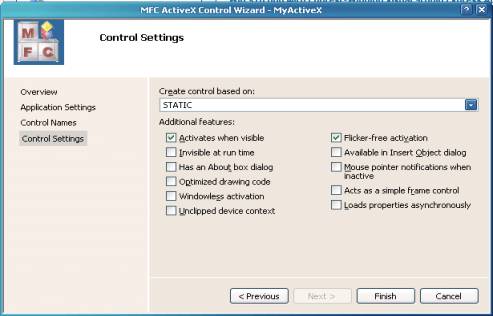
Figure 2. MFC ActiveX Control Wizard Dialog
- Click the Finish button to enable the MFC ActiveX Control Wizard to create the project's source code. By default, the wizard creates the project to use MFC in a shared DLL. We need to change this since the ActiveX control will not run unless the required MFC DLLs are already installed on the system where the control is being downloaded and run. This is one of the causes of a red X displayed where an ActiveX control should be on a web page. From the Visual Studio menu, select Project, Properties. Navigate to Configuration Properties, General. Change the entry “Use of MFC” to “Use MFC in a Static Library”.
- The wizard has created the following three classes:
-
CMyActiveXApp– This is the ActiveX application class derived fromCOleControlModule. It is the base class to derive an OLE control module object that contains the member functions for initialization (InitInstance) and code cleanup (ExitInstance). -
CMyActiveXCtrl– This is derived from the base classCOleControl. This is where we will implement most of the functionality for our control. -
CMyActiveXPropPage– This is derived from the base classCOlePropertyPage. It is used to manage the property page dialog for the control. The ActiveX Control Wizard has created a default dialog to serve as a property page for the control.
-
Adding Support for Animated GIF
In order to implement support for displaying a progress bar animated GIF from the ActiveX control, we will use theCPictureEx class presented by Oleg Bykov in a CodeProject article. Refer to the References section for more details. First, add the source files pictureex.cpp and pictureex.h to your project, by selecting the Solution Explorer tab in VS 2005, then right click on the Header Files or Source Files in the source tree, and then Add, Existing Item to select the appropriate source file.
To add an animated GIF resource to the project, we have to work around a defect in Visual Studio 2005 (and VS 2003) that does not allow importing a GIF image file. If you try it, you will get an error reporting that the file is not a valid GIF file. You can work around this defect as follows:
- Copy the GIF file ProcessingProgressBar.gif to your project working folder, and rename the file toProcessingProgressBar.gaf with a “gaf” file extension. In Resource View, right click on the resource fileMyActiveX.rc, and select Add Resource. In the Add Resource dialog, press the Import button, and select the fileProcessingProgressBar.gaf. In the Custom Resource Type dialog, enter “GIF” for Resource type, and press OK. This will import the GIF image file into the project. You will find it listed under GIF in Resources. Navigate to this item, and change the control ID from the default of
IDR_GIF1toIDR_PROGRESSBAR. - Now, we need to make things right with the image file. First, save the resource file MyActiveX.rc. Navigate to the project working folder, and edit this same resource file with Notepad. Navigate to the line item definition for
IDR_PROGRESSBAR, and change the filename in quotes to “ProcessingProgressBar.gif”. Also, change the GIF image filename in the working folder to “ProcessingProgressBar.gif”. From Notepad, save the resource fileMyActiveX.rc. Visual Studio will then report that the file myactivex.rc has been modified outside of Visual Studio, click Yes to reload the file. One more correction needs to be made. Select Solution Explorer, navigate to the item “ProcessingProgressBar.gaf”, and select it. In Properties, select Relative Path, and correct the filename to “ProcessingProgressBar.gif”.
Adding Dialog for Progress Bar Graphic
Now, we will add a dialog for the progress bar graphic.
- In Resource View, right click on the dialog item in the tree, and select Insert Dialog to create a default dialog.
- Delete the OK and Cancel buttons that are not needed, and adjust the size of the dialog to 230 x 40.
- Change some of the default properties of the dialog to: Border – None, Style – Child, System Menu – False, Visible – True.
- Change the control ID to
IDD_MAINDIALOG. - Insert a picture control into the dialog, by selecting the Toolbox tab on the right of Visual Studio, selecting a picture control, and clicking in the dialog. Adjust the size of the control to 200 x 20. Change the control ID to
IDC_PROGRESSBARand the Color property to White. - Create a class for the dialog, by right clicking on the dialog and selecting Add Class. This results in the MFC Class Wizard dialog as shown in Figure 3. Name the class
CMainDialog, with the base classCDialog. ClickFinish for the wizard to create the default source files for the class.
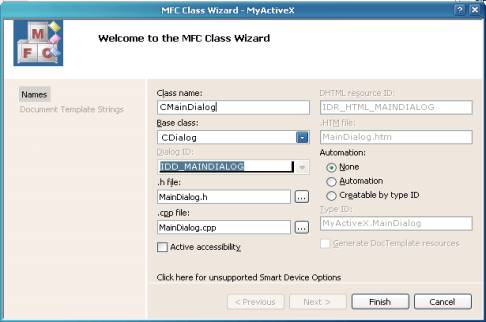
Figure 3. MFC Class Wizard – CMainDialog
Now, we add the member variables for the classes. The member variable m_MainDialog is associated with theCMainDialog class, and m_ProgressBar is associated with the progress bar control we added to the main dialog.
- Add the member variable
m_MainDialogto the classCMyActiveXCtrl. Select Class View, right click onCMyActiveXCtrl, and select Add, Add Variable. EnterCMainDialogfor Variable type andm_MainDialogforVariable name, and then press the Finish button. - Similar to the above, add a member variable
m_ProgressBarto the classCMainDialog. EnterCPictureExforVariable type,m_ProgressBarfor Variable name, and enable the Control variable checkbox, and make sureIDC_PROGRESSBARis entered for Control ID. Before clicking on the Finish button, make sure that Variable typeis set toCPictureExand not changed toCStatic.
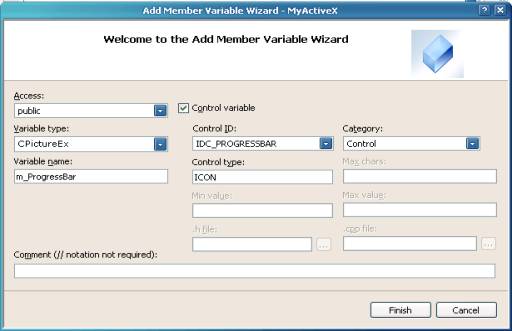
Figure 4. Add Member Variable Wizard – m_ProgressBar
Adding Support Code
Now, we get our hands dirty with adding some code to support drawing the main dialog and the progress bar control.
- Select the class
CMyActiveXCtrl. In the Properties sheet, select the Messages icon, thenWM_CREATE. Select the listbox to the right ofWM_CREATE, then<Add> OnCreateto add a method for theWM_CREATEmessage. The wizard will add theOnCreatemethod to theCMyActiveXCtrlclass. - Edit MyActiveXCtrl.cpp, and add the following code to the
OnCreatemethod to create the main dialog: Collapse | Copy Code
m_MainDialog.Create(IDD_MAINDIALOG, this);
Add the following code to the
OnDrawmethod to size the main dialog window and fill the background: Collapse | Copy Code
m_MainDialog.MoveWindow(rcBounds, TRUE); CBrush brBackGnd(TranslateColor(AmbientBackColor())); pdc->FillRect(rcBounds, &brBackGnd);
- Select the class
CMainDialog. In the Properties sheet, select the Messages icon, thenWM_CREATE. Select the listbox to the right ofWM_CREATE, then<Add> OnCreateto add a method for theWM_CREATEmessage. The wizard will add theOnCreatemethod to theCMainDialogclass. - Edit MainDialog.cpp, and add the following code to the
OnCreatemethod to load and draw the progress bar animated GIF image: Collapse | Copy Code
if (m_ProgressBar.Load(MAKEINTRESOURCE(IDR_PROGRESSBAR),_T("GIF"))) m_ProgressBar.Draw();
Make sure the build configuration is set to the Release configuration, and build the MyActiveX ActiveX application.
Creating a Web Page for an ActiveX Control
The tool of choice for quickly creating a default web page to test your control is Microsoft’s ActiveX Control Pad. It is available for download from Microsoft.
You will also find it available for download at various other sites on the Internet. Install it and run it on the same system you are using to develop the control with Microsoft Visual Studio. To make it easier for initial testing of the application, you should make sure that the Microsoft IIS web server is installed on this same system.
When you first run the ActiveX Control Pad, it will create a default HTML web page for you. To insert an ActiveX control, right click within the <BODY> tag of the HTML source, and select Insert ActiveX Control. In the Insert ActiveX Control dialog, scroll down and select MyActiveX Control that you have created with Visual Studio, and click OK.
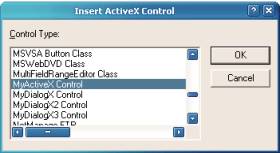
Figure 5. ActiveX Control Pad – Insert ActiveX Control
Two dialog boxes will be displayed in the ActiveX Control Pad, enabling you to modify the control. The Propertiesdialog is for modifying properties of the control, the Edit ActiveX Control dialog is for manually editing the control. You can close both of these dialogs as we can make any further changes necessary by manually editing the HTML code. You should now find an OBJECT ID tag inserted in the HTML code, similar to that shown in Figure 6. Change the size parameters of the control by changing to “WIDTH=350” and “HEIGHT=50” in the OBJECT ID tag. Save the HTML file for the web page to the file myactivex.htm in the root folder wwwroot of IIS web server.
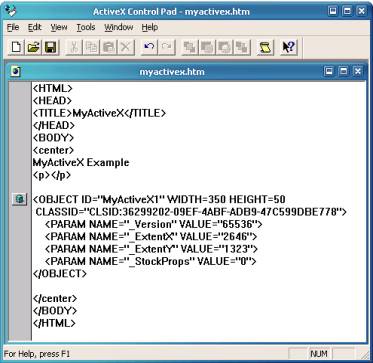
Figure 6. ActiveX Control Pad – MyActiveX ActiveX Control
To test the ActiveX control, load the web page http://localhost/myactivex.htm with Internet Explorer. If you get any warning messages, just click OK to proceed. This should result in a progress bar animated GIF displayed within the web page. If not, or if you get a red X displayed where the ActiveX control should be, then it is most likely due to the security settings of the browser which is preventing the ActiveX control from loading and running. To correct this, modify the security settings in Internet Explorer to change all the settings that have to do with ActiveX to enabled.
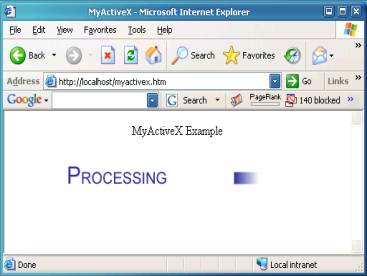
Figure 7. MyActiveX Control in Internet Explorer
Next, we need to build the ActiveX control so loading it from Internet Explorer browser does not result in annoying error messages complaining that it is an unsigned or unsafe control.
Building a Signed ActiveX Control
To create a signed ActiveX control, you must purchase a Code Signing Certificate from one of the certificate providers such as Thawte, Verisign, or GeoTrust. With this service, they will verify your identity and provide you certificate files you use to sign the ActiveX application. I chose Thawte for a Code Signing Certificate, who provided two files for signing the application, mycert.spc and mykey.pvk.
To sign the ActiveX application, we package the components of the application into a CAB file, which is downloaded from the web site and the ActiveX control is installed on the system. Part of installing the ActiveX control requires registering the control. To enable that to happen, the control must be built with the OLESelfRegister value defined in the VERSIONINFO structure of the ActiveX control. Versions of Microsoft Visual Studio up to VS 2003 inserted this entry, but Visual Studio 2005 does not. To add the entry, edit the resource file myactivex.rc to add theOLESelfRegister value, as shown below:
Collapse | Copy Code
VS_VERSION_INFO VERSIONINFO FILEVERSION 1,0,0,1 PRODUCTVERSION 1,0,0,1 FILEFLAGSMASK 0x3fL #ifdef _DEBUG FILEFLAGS 0x1L #else FILEFLAGS 0x0L #endif FILEOS 0x4L FILETYPE 0x2L FILESUBTYPE 0x0L BEGIN BLOCK "StringFileInfo" BEGIN BLOCK "040904e4" BEGIN VALUE "CompanyName", "TODO: <Company name>" VALUE "FileDescription", "TODO: <File description>" VALUE "FileVersion", "1.0.0.1" VALUE "InternalName", "MyActiveX.ocx" VALUE "LegalCopyright", "TODO: (c) <Company name>. All rights reserved." VALUE "OLESelfRegister", "\0" VALUE "OriginalFilename", "MyActiveX.ocx" VALUE "ProductName", "TODO: <Product name>" VALUE "ProductVersion", "1.0.0.1" END END BLOCK "VarFileInfo" BEGIN VALUE "Translation", 0x409, 1252 END END
Before signing the application, the ActiveX control should be packaged into a CAB file. This CAB file will also contain an INF file that is used for installing your ActiveX control. To build a CAB file, you need the cabarc.exe tool available in the Microsoft Cabinet Software Development Kit. The following is an example of a simple INF file that can be used for packaging the MyActiveX control into a CAB file. For the CLSID line item, you should change the value to the same value as that in the OBJECT ID tag in the HTML web page you created earlier with the ActiveX Control Pad.
Collapse | Copy Code
[Add.Code] myactivex.ocx=myactivex.ocx myactivex.inf=myactivex.inf [myactivex.ocx] file=thiscab clsid={36299202-09EF-4ABF-ADB9-47C599DBE778} RegisterServer=yes FileVersion=1,0,0,0 [myactivex.inf] file=thiscab
To create a CAB file, run cabarc as shown below. Important: Make sure the OCX and INF files are in same directory where you are running cabarc.exe, otherwise the CAB will not be extracted correctly after downloading from the web server. This is one of the problems that will cause a red X on the web page where the ActiveX control should be.
Collapse | Copy Code
cabarc -s 6144 N myactivex.cab myactivex.ocx myactivex.inf
To sign the CAB file you created, you need the signcode.exe tool from Microsoft MSDN. Refer to the “Signing and Checking with Authenticode” reference at the end of this article. You use the signcode tool with the certificate files you obtained from purchasing a Coding Signing Certificate to sign the CAB file. The following is an example use of signcodeto sign myactivex.cab:
Collapse | Copy Code
signcode -n "myactivex" -i http://www.myactivex.com -spc mycert.spc -v mykey.pvk -t <A href="http://timestamp.verisign.com/scripts/timstamp.dll%20myactivex.cab" target=_blank>http://timestamp.verisign.com/scripts/timstamp.dll myactivex.cab</A>
In the above example, http://www.myactivex.com should be replaced with a web page that provides users further information about your signed ActiveX control.
To use the signed CAB file in your web page, first copy the myactivex.cab to a folder on your web site, then you must modify the OBJECT ID tag on your web page with a CODEBASE parameter to reference this CAB file. Refer to Figure 8 for an example. If you load this page in Internet Explorer, it should download the CAB file and install your ActiveX control with no warning about an unsigned ActiveX control.
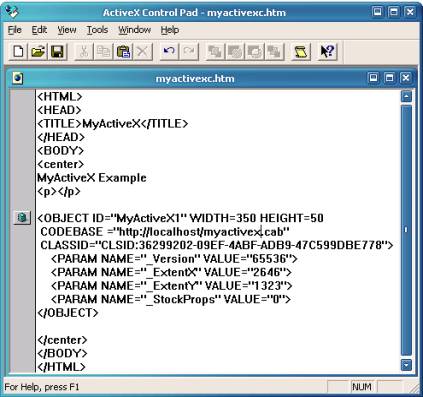
Figure 8. ActiveX Control Pad – MyActiveX with CODEBASE
Building a Safe ActiveX Control
To make a control that will load in Internet Explorer with no unsafe control warning or error messages, you must implement code that ensures safe initialization and safe scripting for an ActiveX control. Detailed information for doing that can be found in the article “Safe Initialization and Scripting for ActiveX Controls” on Microsoft MSDN. Refer to References at the end of this article for details. I found omissions and mistakes in this article that I have corrected for presentation in this article. Basically, all that needs to be done is to add code to the DllRegisterServer andDllUnregisterServer methods. The following is a step-by-step guide for making your ActiveX control safe:
- Edit MyActiveX.cpp and add the following code. The value of
CLSID_SafeItemshould be taken fromIMPLEMENT_OLECREATE_EXin the MyActiveXCtrl.cpp source file or the equivalent for your ActiveX control. It will also be the same value as the CLSID in the OBJECT ID tag on the HTML page with your ActiveX control. Collapse | Copy Code
#include "comcat.h" #include "strsafe.h" #include "objsafe.h" // CLSID_SafeItem - Necessary for safe ActiveX control // Id taken from IMPLEMENT_OLECREATE_EX function in xxxCtrl.cpp const CATID CLSID_SafeItem = { 0x36299202, 0x9ef, 0x4abf,{ 0xad, 0xb9, 0x47, 0xc5, 0x99, 0xdb, 0xe7, 0x78}}; // HRESULT CreateComponentCategory - Used to register ActiveX control as safe HRESULT CreateComponentCategory(CATID catid, WCHAR *catDescription) { ICatRegister *pcr = NULL ; HRESULT hr = S_OK ; hr = CoCreateInstance(CLSID_StdComponentCategoriesMgr, NULL, CLSCTX_INPROC_SERVER, IID_ICatRegister, (void**)&pcr); if (FAILED(hr)) return hr; // Make sure the HKCR\Component Categories\{..catid...} // key is registered. CATEGORYINFO catinfo; catinfo.catid = catid; catinfo.lcid = 0x0409 ; // english size_t len; // Make sure the provided description is not too long. // Only copy the first 127 characters if it is. // The second parameter of StringCchLength is the maximum // number of characters that may be read into catDescription. // There must be room for a NULL-terminator. The third parameter // contains the number of characters excluding the NULL-terminator. hr = StringCchLength(catDescription, STRSAFE_MAX_CCH, &len); if (SUCCEEDED(hr)) { if (len>127) { len = 127; } } else { // TODO: Write an error handler; } // The second parameter of StringCchCopy is 128 because you need // room for a NULL-terminator. hr = StringCchCopy(catinfo.szDescription, len + 1, catDescription); // Make sure the description is null terminated. catinfo.szDescription[len + 1] = '\0'; hr = pcr->RegisterCategories(1, &catinfo); pcr->Release(); return hr; } // HRESULT RegisterCLSIDInCategory - // Register your component categories information HRESULT RegisterCLSIDInCategory(REFCLSID clsid, CATID catid) { // Register your component categories information. ICatRegister *pcr = NULL ; HRESULT hr = S_OK ; hr = CoCreateInstance(CLSID_StdComponentCategoriesMgr, NULL, CLSCTX_INPROC_SERVER, IID_ICatRegister, (void**)&pcr); if (SUCCEEDED(hr)) { // Register this category as being "implemented" by the class. CATID rgcatid[1] ; rgcatid[0] = catid; hr = pcr->RegisterClassImplCategories(clsid, 1, rgcatid); } if (pcr != NULL) pcr->Release(); return hr; } // HRESULT UnRegisterCLSIDInCategory - Remove entries from the registry HRESULT UnRegisterCLSIDInCategory(REFCLSID clsid, CATID catid) { ICatRegister *pcr = NULL ; HRESULT hr = S_OK ; hr = CoCreateInstance(CLSID_StdComponentCategoriesMgr, NULL, CLSCTX_INPROC_SERVER, IID_ICatRegister, (void**)&pcr); if (SUCCEEDED(hr)) { // Unregister this category as being "implemented" by the class. CATID rgcatid[1] ; rgcatid[0] = catid; hr = pcr->UnRegisterClassImplCategories(clsid, 1, rgcatid); } if (pcr != NULL) pcr->Release(); return hr; } - Modify the
DllRegisterServermethod to add the highlighted code as shown: Collapse | Copy Code
STDAPI DllRegisterServer(void) { HRESULT hr; // HResult used by Safety Functions AFX_MANAGE_STATE(_afxModuleAddrThis); if (!AfxOleRegisterTypeLib(AfxGetInstanceHandle(), _tlid)) return ResultFromScode(SELFREG_E_TYPELIB); if (!COleObjectFactoryEx::UpdateRegistryAll(TRUE)) return ResultFromScode(SELFREG_E_CLASS); // Mark the control as safe for initializing. hr = CreateComponentCategory(CATID_SafeForInitializing, L"Controls safely initializable from persistent data!"); if (FAILED(hr)) return hr; hr = RegisterCLSIDInCategory(CLSID_SafeItem, CATID_SafeForInitializing); if (FAILED(hr)) return hr; // Mark the control as safe for scripting. hr = CreateComponentCategory(CATID_SafeForScripting, L"Controls safely scriptable!"); if (FAILED(hr)) return hr; hr = RegisterCLSIDInCategory(CLSID_SafeItem, CATID_SafeForScripting); if (FAILED(hr)) return hr; return NOERROR; } - Modify the
DllUnregisterServermethod to add the highlighted code as shown: Collapse | Copy Code
STDAPI DllUnregisterServer(void) { HRESULT hr; // HResult used by Safety Functions AFX_MANAGE_STATE(_afxModuleAddrThis); if (!AfxOleUnregisterTypeLib(_tlid, _wVerMajor, _wVerMinor)) return ResultFromScode(SELFREG_E_TYPELIB); if (!COleObjectFactoryEx::UpdateRegistryAll(FALSE)) return ResultFromScode(SELFREG_E_CLASS); // Remove entries from the registry. hr=UnRegisterCLSIDInCategory(CLSID_SafeItem, CATID_SafeForInitializing); if (FAILED(hr)) return hr; hr=UnRegisterCLSIDInCategory(CLSID_SafeItem, CATID_SafeForScripting); if (FAILED(hr)) return hr; return NOERROR; }
ActiveX Control Properties, Methods, and Events
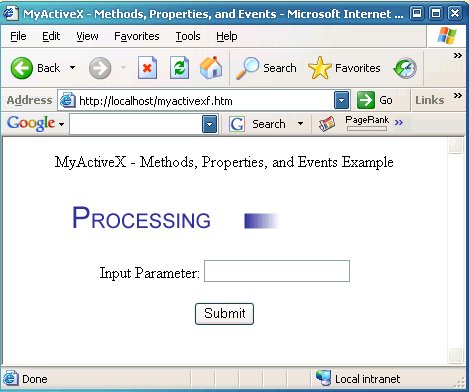
Communication between an ActiveX control and a web page is done through ActiveX control properties, methods, and events. In order to demonstrate these concepts, we will create a simple web page with a form entry to enter a text string. When a Submit button is pressed, the text entered is passed to the ActiveX control through an input parameter custom property. A method of the control is called which copies this text to an output parameter custom property, and then fires an event for this text to be displayed on the web page. Simply follow these steps in Visual Studio to implement this:
- First, we will create the custom properties for passing text to and from the ActiveX control. In Class View, expand the element MyActiveXLib to select _DMyActiveX. Right click on _DMyActiveX, then Add, Add Property. In the Add Property Wizard dialog as shown in Figure 9, select
BSTRfor Property type, and enter “InputParameter” for Property name. The wizard will fill other fields automatically for you with “m_InputParameter” for Variable name and “OnInputParameterChanged” for Notification function. Click the Finish button where the wizard will automatically create the code to support this property. Do the same for Property name“OutputParameter” with the same Property typeBSTR.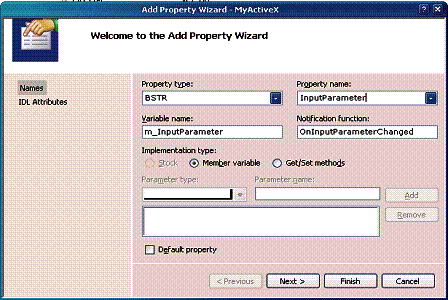
Figure 9. Add Property Wizard
- Next, we will create a method to enable the web page to notify the control to transfer the text string input parameter to the output parameter. In Class View, expand the element MyActiveXLib to select _DMyActiveX. Right click on _DMyActiveX, then Add, Add Method. In the Add Property Wizard dialog, as shown in Figure 9, select
voidfor Return type and enter “LoadParameter” for Method name. The wizard will automatically enter “LoadParameter” for Internal name. Click Finish where the wizard will automatically create the code to support this method.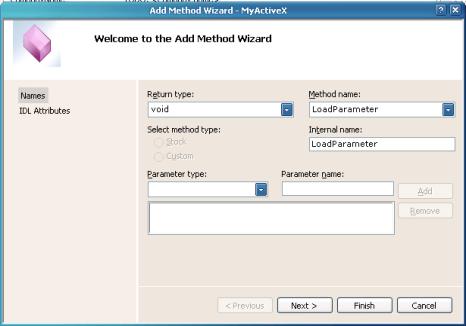
Figure 10. Add Method Wizard
- Now, we will create an event that enables the ActiveX control to notify the web page that it is completed transferring the text from the input parameter to the output parameter. Code in the web page will react to this event and respond by displaying the text in the output parameter to verify that this transfer has occurred by the ActiveX control. In Class View, right click on
CMyActiveXCtrl, select Add, Add Event. In the Add Event Wizard, as shown in Figure 11, enter “ParameterLoaded” for Event name and change Internal name to “FireParameterLoaded”. Click Finish for the wizard to create the default code to support this event.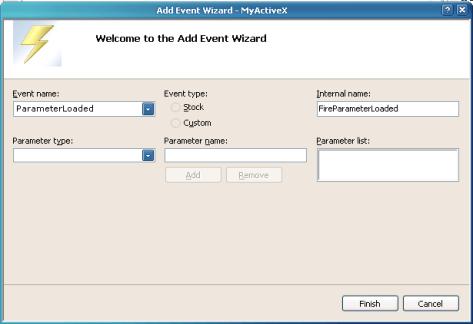
Figure 11. Add Event Wizard
With the above, the wizard has created a majority of the code for you. We only need to add two lines of code to implement the functionality for the ActiveX control to copy the text and notify the web page code through an event. Edit the source file MyActiveXCtrl.cpp, and add the following code to the LoadParameter method.
Collapse | Copy Code
// Copy text from the input parameter to the output parameter m_OutputParameter = m_InputParameter; // Fire an event to notify web page FireParameterLoaded();
To test, use the ActiveX Control Pad to create the following HTML code:
Collapse | Copy Code
<HTML> <HEAD> <TITLE>MyActiveX - Methods, Properties, and Events</TITLE> <SCRIPT LANGUAGE="JavaScript"> function PassParameter() { if (StringInput.value != " ") { MyActiveX1.InputParameter = StringInput.value; MyActiveX1.LoadParameter(); } } </SCRIPT> </HEAD> <BODY> <center> MyActiveX - Methods, Properties, and Events Example <p></p> <OBJECT ID="MyActiveX1" WIDTH=350 HEIGHT=50 CLASSID="CLSID:36299202-09EF-4ABF-ADB9-47C599DBE778"> <PARAM NAME="_Version" VALUE="65536"> <PARAM NAME="_ExtentX" VALUE="2646"> <PARAM NAME="_ExtentY" VALUE="1323"> <PARAM NAME="_StockProps" VALUE="0"> </OBJECT> <p></p> Input Parameter: <INPUT TYPE ="text" NAME="StringInput" VALUE=" "> <p></p> <INPUT TYPE="button" NAME="Submit" VALUE="Submit" ONCLICK=PassParameter()> <SCRIPT FOR=MyActiveX1 EVENT=ParameterLoaded()> <!-- { window.document.write("The parameter you entered is:<br> " + MyActiveX1.OutputParameter + " ") --> </SCRIPT> </center> </BODY>
Save this HTML code to your web server, and run it. You should see a web page with a progress bar displayed and a form entry to enter the Input Parameter text. Enter text in the field, and press Submit. This should result in a new page with “The parameter you entered is: ”, followed by the text you entered on the next line. A brief explanation of the HTML code follows.
When you press the Submit button, the JavaScript function PassParameter is invoked. This function copies text from the StringInput form field to the InputParameter property of the ActiveX control. It then calls theLoadParameter method of the control which copies the text from InputParameter to OutputParameter and callsFireParameterLoaded() to cause an ActiveX event. The following HTML code then responds to this event:
Collapse | Copy Code
<SCRIPT FOR=MyActiveX1 EVENT=ParameterLoaded()> <!-- { window.document.write("The parameter you entered is:<br> " + MyActiveX1.OutputParameter + " ") --> </SCRIPT>
References:
- Add GIF-animation to your MFC and ATL projects with the help of CPictureEx and CPictureExWnd by Oleg Bykov, CodeProject.
- Packaging ActiveX Controls, Microsoft.
- Signing and Checking with Authenticode, Microsoft.
- Safe Initialization and Scripting for ActiveX Controls, Microsoft.
License
This article has no explicit license attached to it but may contain usage terms in the article text or the download files themselves. If in doubt please contact the author via the discussion board below.
A list of licenses authors might use can be found here
from:http://www.codeproject.com/Articles/14533/A-Complete-ActiveX-Web-Control-Tutorial
来源:https://yq.aliyun.com/articles/644536
智能推荐
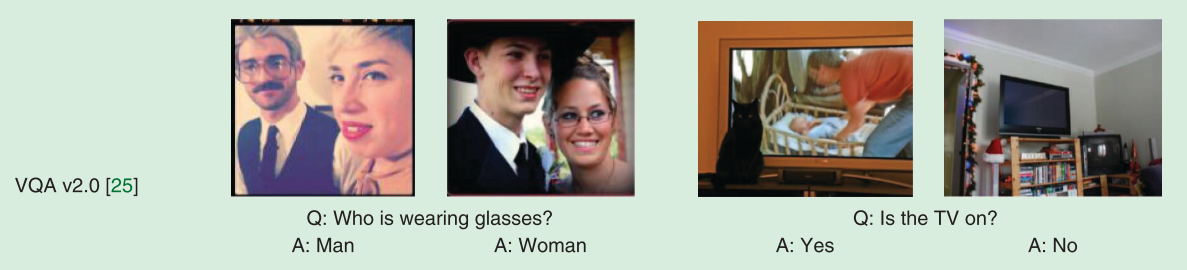
论文-《Visual Question Answering A tutorial》笔记
重点翻译拓展 论文下载 主题: 本文主要介绍了该领域正在进行的工作以及基于深度学习的VQA如今的方法。 正文: 1.研究VQA的原因: (1)计算机视觉方面,需要根据算法从图像中提取高水平的数据并进行推理分析,VQA作为最初图灵测试或者图像字幕的替代任务出现。 (2)VQA如果发展成熟,可以独立应用于生活。 2.VQA答案形式: (1)开放式回答,包含了较为复杂句式,并...
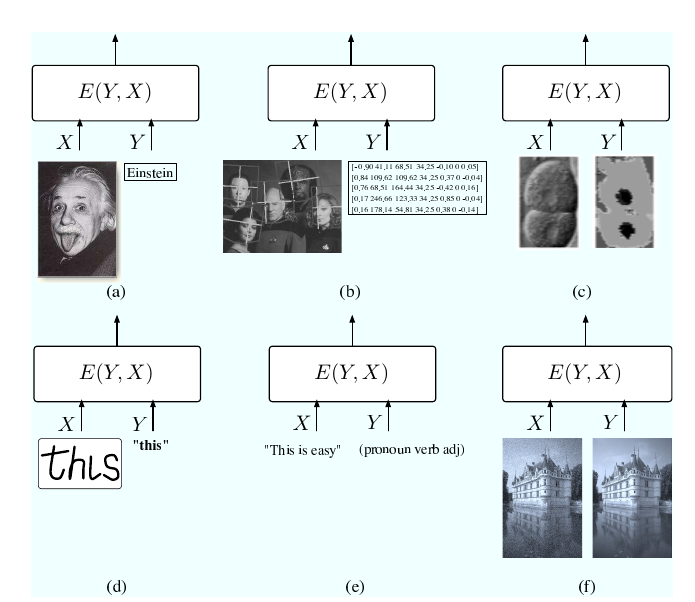
A Tutorial on Energy-Based Learning
文章目录 概 主要内容 损失函数 Energy Loss Generalized Perceptron Loss Generalized Margin Loss Hinge Loss Log Loss LVQ2 Loss MCE Loss Square-Square Loss Square-Exponential Negative Log-Likelihood Loss Empirical Err...
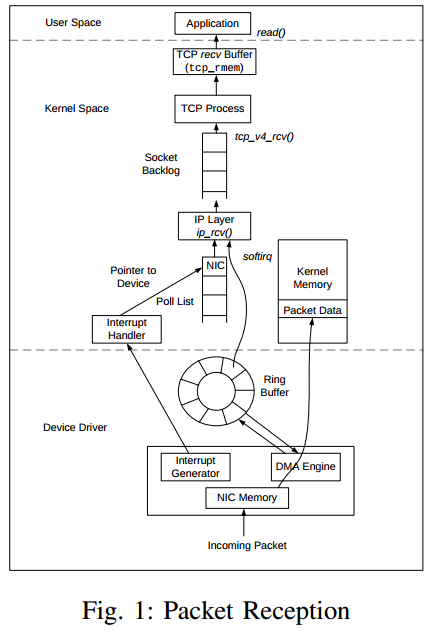
TCP Implementation in Linux: A Brief Tutorial
A. Introduction This document provides a brief overview of how TCP is implemented in Linux.It is not meant to be comprehensive,nor do we assert that it is without inaccuracies. B. TCP implementat...
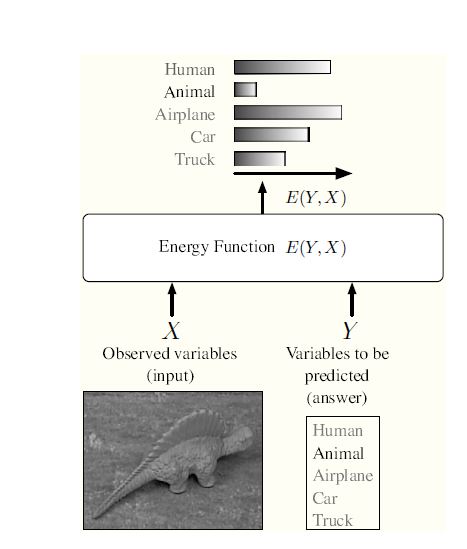
A Tutorial on Energy-Based Learning
A Tutorial on Energy-Based Learning 1 Introduction: Energy-Based Models 统计建模和机器学习的主要目的是编码变量之间的依赖关系。通过捕获这些依赖关系,模型可以用来回答给定已知变量值的未知变量值的问题。 基于能量的模型(ebm)通过将标量能量(兼容性的度量)与变量的每个configuration相关联来捕获依赖性。推理,即作出预测...

iPhone Coding Tutorial – Inserting A UITextField In A UIAlertView
This will be a simple tutorial showing you how to put a UITextField in a UIAlertView. This is simple and just a couple lines if code. You will learn CGAffineTransform and coding UITextField programmat...
猜你喜欢

1123 Is It a Complete AVL Tree (AVL树)
An AVL tree is a self-balancing binary search tree. In an AVL tree, the heights of the two child subtrees of any node differ by at most one; if at any time they differ by more than one, rebalancing is...
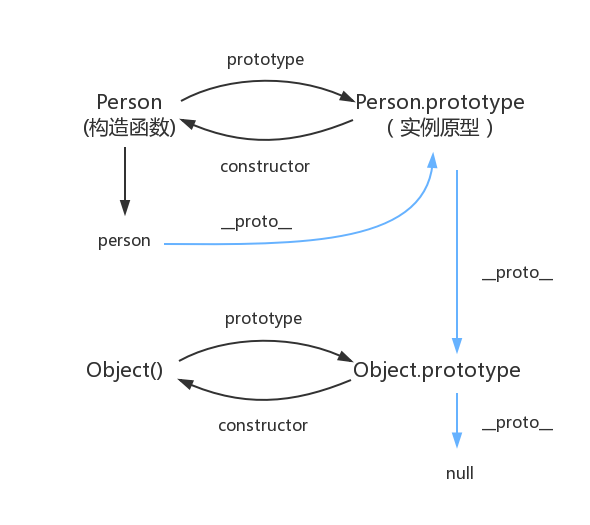
原型对象,原型链
函数都有prototype属性,它指向原型对象。 实例对象有__proto__属性,它指向对象原型 每一个原型对象都有constructor输赢,指向构造函数,每一个原型对象又具有__proto__属性,这个指向Object.prototype.在这里插入图片描述...

Node 调用 dubbo 服务的探索及实践
2.Dubbo简介 2.1 什么是dubbo Dubbo是一款高性能、轻量级的开源Java RPC框架,它提供了三大核心能力:面向接口的远程方法调用,智能容错和负载均衡,以及服务自动注册和发现。 2.2 流程图 Provider : 暴露服务的服务提供方。 Consumer : 调用远程服务的服务消费方。 Registry : 服务注册与发现的注册中心。 Monito...
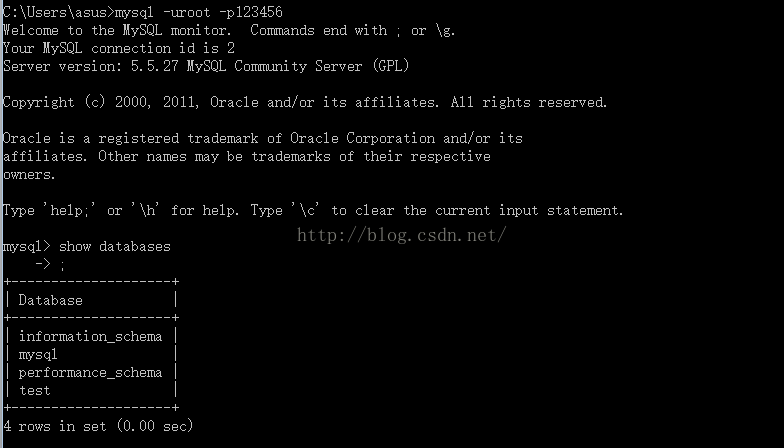
mysql总结
mysql基础入门的总结 关于数据库: 数据库是软件开发人员要掌握的基本工具,软件的运行的过程就是操作数据的过程,数据库中的数据无非就是几个操作:增-删-查-改。 Mysql安装完成后,需要配置变量环境,找到配置路径path,然后把mysql安装目录bin文件导入就可以了。 然后运行cm...
adb及monkey常用命令
adb常用命令: 查看手机是否连接:adb devices 连接设备:adb connect 设备ip:端口号 若有连接多个设备需指明设备ip及端口号 安装APP:adb install [-r] 包名 -r表示覆盖安装,首次安装可省略 卸载APP:adb uninstall 包名 列出设备中所有应用包名:adb shell pm list packages ...
问答精选
Correctly formatting GCM notifications?
I'm currently trying out the google cloud messaging service with its sample application "Guestbook." https://developers.google.com/cloud/samples/mbs/ I'm attempting to send notifications tha...
Are there any performance benefits of using Asynchronous functions over Synchronous in Node Js?
Now I came across an article that distinguishes between an Asynchronous function and Synchronous functions. From my understanding of the different examples and explanations, synchronous functions are ...
Python: Costing calculator output
Good day all I'm busy creating a small costing calculator for the signage department. I'm not getting the calculator to output the amount. Brief Description: You enter the height and width and then wh...
Flask-SQLAlchemy - model has no attribute 'foreign_keys'
I have 3 models created with Flask-SQLalchemy: User, Role, UserRole role.py: user.py: user_role.py: If I try (in the console) to get all users via User.query.all() I get AttributeError: 'NoneType' obj...
Seeding many PRNGs, then having to seed them again, what is a good quality approach?
I have many particles that follow an stochastic process in parallel. For each particle, there is a PRNG associated to it. The simulation must go through many repetitions to get average results. For ea...
相关问题
- 使用Web Control.
- Triggering animation inside a control
- 触发事件处理程序时Excel VBA -get ActiveX Control»
- addon /插件不适用于IE ActiveX Control PB
- SharePoint InputFormpection Control Gook-a-like
- Meteor: filtering a complete collection that is published with limit for lazy loading
- Show Hide using Javascript on a control, inside a ASCX control in a gridview. (ASP.NET + Javascript)
- 如何在WebBrowser-Control(ActiveX InternetExplorer)上获取页面的源代码?
- 使用本机窗口界面编写Firefox XPCOM插件? (如ActiveX Control)
- How can I bind a button control to a cfc to toggle a boolean database value
相关文章
- 基于树的算法建模 Tree Based Algorithms: A Complete Tutorial from Scratch (in R & Python)
- Complete Java Collection tutorial for the beginner
- A Complete FTP Server
- A Tutorial on Network Embeddings
- Access ActiveX Object Control in Visual Studio 2008
- MFC编程时找不到Activex 控件 Microsoft communications control
- A COMPLETE GUIDE TO CREDIT RISK MODELLING
- MeetMe-Web-Control
- ActiveX
- 论文翻译:A Tutorial on Thompson Sampling
热门文章
推荐文章
相关标签
推荐问答
- ShareActionProvider with background processing
- gridview changing position automatically when notifiedDatasetChangedCalled?
- How to efficiently fill-in a structure with vectors?
- when i exit from node js, i just cant give command in my terminal
- How to upload an image with Spray?
- Edit my message before posting in Twitter with Twitter API and PHP
- Using css style selector in JQuery not working?
- Can Html.Display/Html.DisplayFor/Html.DisplayForModel work with a DataTable?
- What does <?!= mean in Google Apps Script?
- Python/Linux - Manually installing httplib2 as a non-root user